NFC Area

Wristband
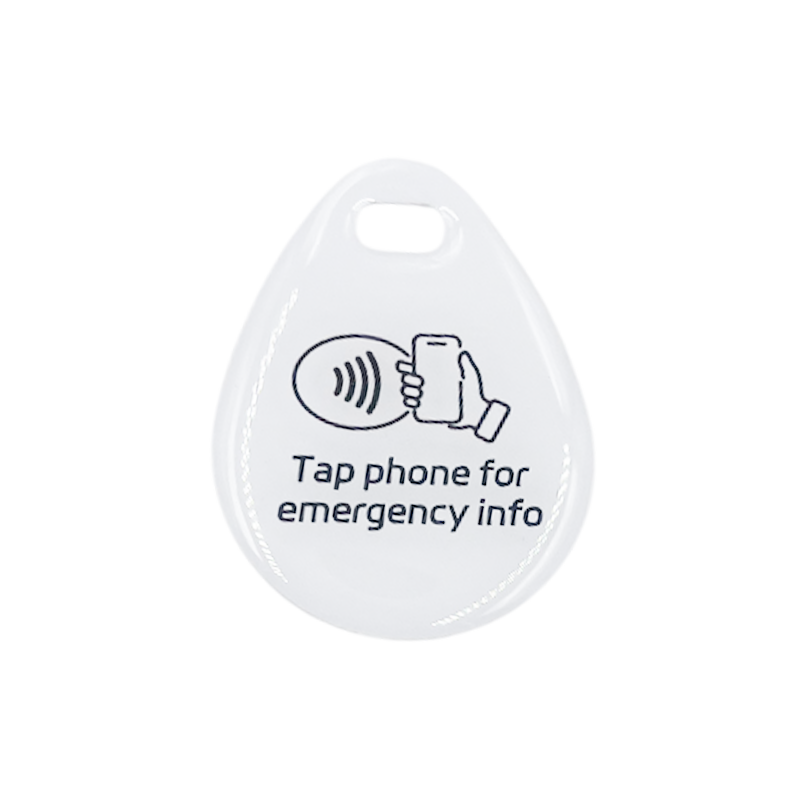
Pet Tag
QR Tag / Sticker
Tap phone to center of wristband/pet tag or scan QR code
Important Tips
- Wear your wristband / pet tag or keep tag visible
- Test NFC tap & QR scan function regularly
- Clean with mild soap and water
- No battery required - lasts for years
- Compatible with all smartphones (NFC or Camera)
- Waterproof and durable silicone
Troubleshooting & Warranty
NFC tap or QR scan not responding?
1. Check NFC / Camera settings:
- iPhone: Settings → General → NFC (iOS 11+)
- Android: Settings → Connections → NFC
- QR Code: Open default Camera app to scan
2. Manual entry option:
- If scanning is unavailable, visit alertnfc.com/scan and enter ID (e.g. ABCDE12345).
Sticker Damage Warranty:
Stickers feature an anti-scratch coating. If coating is worn or missing upon arrival, contact customer service via your purchase order for a FREE REPLACEMENT!
Recommended Placement
Place your emergency QR sticker or tag where it's easily spotted by first responders:
- Helmets (Bike/Moto)
- Wallets & ID Cards
- Luggage & Backpacks
- Vehicle Dashboards
- Pet Collars / Harness
- Phone Cases
1
First Time Setup
When you tap NFC tag or scan the QR code for first time:
- Enter your email address & order number (optional)
- Click "Send Verification Code" & check email
- Complete your emergency information
2
Emergency Information
Fill out your profile with:
- Your name and photo (optional)
- Emergency contact details
- Medical information (if needed)
- Special notes or instructions
3
Active Emergency Tag
Once setup is complete, anyone tapping or scanning your tag sees:
- Your emergency contact card
- Direct call button to emergency contact
- Medical information and notes
4
Edit Your Information
To update your information:
- Tap NFC, scan QR code, or search ID on alertnfc.com/scan
- Click "Edit/Deactivate" button at bottom of card
- Verify your email address & make changes
Important: Keep your emergency contacts updated!